

TL;DR. Choose a free AI image tool by testing the final file you need. A useful generator should produce the composition from a prompt, a useful editor should preserve details outside the area you change, and a useful free plan should let you download a file you can use.
Which free AI image tool fits your task?
Choose the tool by starting with the input you already have and the output you need. An image generator makes new pixels from a text prompt or reference. An image editor changes part of an existing picture. A layout editor combines finished artwork with elements such as text or a logo.
| Task | What to test | Example to try |
|---|---|---|
| Make a visual from scratch | Can the tool follow a specific composition? | Canva Text to Image or Adobe Firefly Text to Image |
| Remove or replace one object | Do the untouched areas still match the source? | Adobe Firefly Generative Fill |
| Add a headline and export a graphic | Does the downloaded file meet your dimensions and format? | Canva |
Canva documents text-to-image generation inside its design editor. Adobe documents Generative Fill as a way to add or remove content from an image, using a selected area. Check each product’s current plan and export options before starting, especially for a multi-image project. Canva AI Image Generator · Adobe Firefly Generative Fill
How can you compare generators with one realistic prompt?
Give each generator the same brief, then judge the outputs against the same checklist. For example, ask for “a small cobalt desk lamp on a pale wooden desk, angled toward an empty cream wall, daylight from the left, clear space at the top for a heading, no text.” The empty space and light direction help you spot whether the tool followed the brief.
Create one candidate in each tool before exploring styles. Record how many attempts you need for an acceptable composition. A service that makes one usable candidate in two attempts can be more practical for a weekly newsletter than a service that makes striking images after many retries.
- Check whether the lamp shape and color match the brief.
- Open the exported file and check its pixel dimensions.
- Verify that the planned crop leaves room for the heading.
- Record any watermark, credit cost, or export restriction.
How do you test whether an AI image editor preserves the original?
Mask a small area, request one change, and compare the resulting file with the original at the same zoom. A mask marks the area you want to edit. For a lamp photo, mask the coffee cup behind it and ask the editor to replace it with plain tabletop. Inspect the lamp silhouette, shadow, and surface texture before accepting the result.
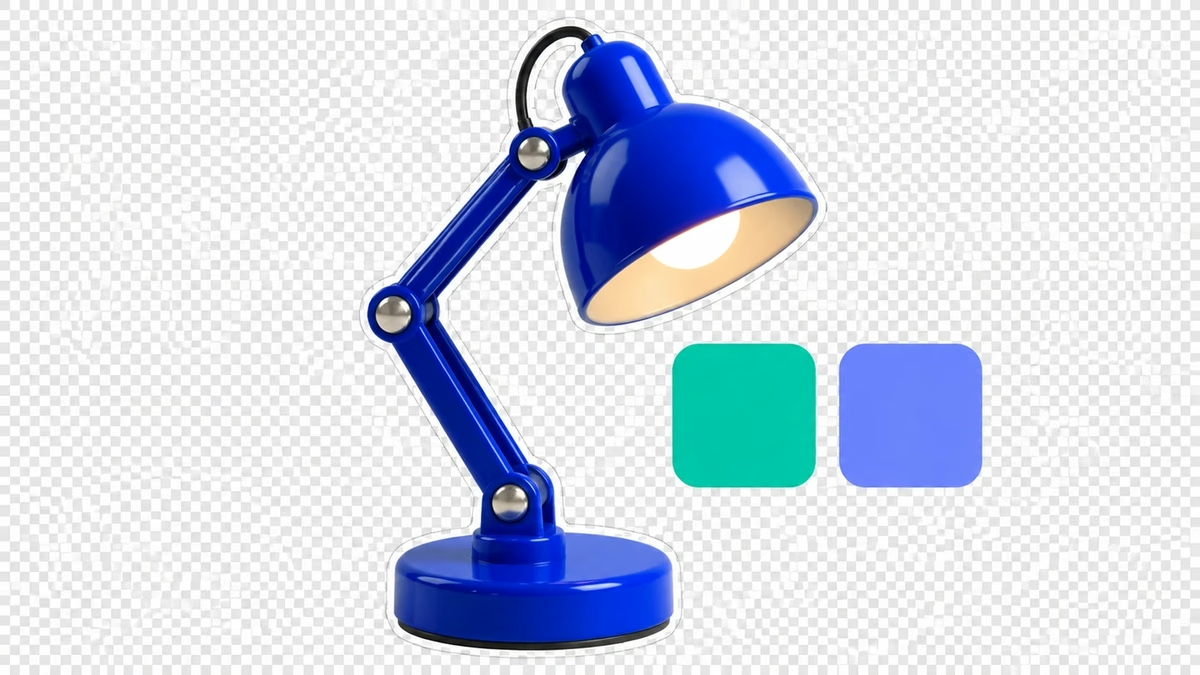
Inspect details with practical consequences before you publish. Generative systems can produce output that deviates from the supplied input, a behavior NIST discusses in its generative AI risk profile. A changed product detail, a distorted logo, or an invented label deserves a manual check. NIST Generative AI Profile
What does “free” cover when you export the image?
A free plan is useful when it covers the generation, revision, and download steps your project needs. Open the credit or usage page, then download a test file. Check whether the plan covers your intended use under the current terms, including use for a client or a commercial campaign.
| Check | What to verify |
|---|---|
| Usage | How many generations and edits your budget covers |
| Output | Pixel dimensions, file type, watermark, and transparency |
| Rights | Terms that apply to the tool, asset, and intended publication |
| Upload | Whether the service can receive and process your source material |
What else should you check before committing to a tool?
Can you generate an image from another image?
Yes, tools with reference-image or image-to-image features can use an uploaded picture as input. Verify whether the tool preserves composition, adapts style, or regenerates the scene, since those results serve different tasks.
Is a free AI image generator enough for a client project?
It can be enough if the plan covers the intended use and exports a clean file at the required size. Confirm rights and upload permissions before testing with client material.
What should you use when only one part needs changing?
Use a tool with masked editing or generative fill. Compare the edit side by side with the original and review features the reader will recognize, including borders, colors, and shadows.
How can you tell whether an image has transparency?
Open the exported file in an editor and place a solid color underneath it. Check the edges for a white background or a fringe that becomes visible on a darker surface.
What should you do next?
Take one brief, run it through the tools you are considering, and compare exported files. Browse Toolnetly’s Image & Design category to find candidates, including the Adobe Firefly listing.
The creator learning path connects visual design, transcription and source-checked content planning.
For editable slide decks, compare AI presentation tools. For original media projects, our AI music tools selection explains why generation access and publishing rights differ.